CN

×

keywords:

xxxx1 xxx2 xxx3 xx4 copy
Shenzhen Meiyad Optoelectronics Co., Ltd. Shenzhen Meiyad Optoelectronics Co., Ltd.

News

Flying & Dome Theaters Transformed by Meiyad Acoustically Transparent Cinema LED Display Solution

11
06
2026

Table of Contents

What is an Acoustically Transparent Cinema LED Display?

Difference Between Standard LED Displays and Acoustically Transparent LED Displays


Traditional LED screens block sound and may cause echo in dome theaters


Traditional LED screens block sound and may cause echo in dome theaters.


Meiyad acoustically transparent LED screen


Acoustically transparent LED screens use micro-hole design to let sound pass through while keeping excellent image quality. Suitable for: flight cinemas, science museums, cinemas, dome theaters and planetariums.


Sound Transparency Beyond Flat Screens


Sound transparency is the core technology of dome screens, solving on-site echo issues.


Sound transparency is the core technology of dome screens, solving on-site echo issues.


What are the technical advantages of acoustically transparent cinema LED screens compared to traditional cinema screens?

  • High Brightness: LED self-illumination, far brighter than projectors.

  • High Contrast: Clearer image layers, enhanced color performance.

  • High Uniformity: Consistent visual quality, stronger immersion.

  • HDR: Only LED cinema screens support DCI-standard HDR.

  • High Grayscale: Smoother color transitions, better shadow details.

  • Wide Viewing Angle: Optimal viewing experience.

  • Anti-Interference: Immune to sunlight and ambient light interference (unlike traditional screens).

  • Modular Design: Modular structure for easy installation and maintenance.

  • Long Lifespan: Reliable LED chips, no periodic light source replacement required.

  • No Projection Room Required: Self-emissive screen eliminates the need for a projection room, boosting profit margins.


Transparent Acoustic Cinema LED Screen vs DLP Cinema Screen


Parameter ComparisonAcoustically Transparent Cinema LED ScreenDLP Cinema + Silver Screen
Peak BrightnessBright: 300nit (88fL)Dark: 30~100nit (10~42fL)
Screen Black LevelPure Black: Absolute”0”Not Black Enough: 0.030nit
Reflectivity"Black Screen": 10% (Gain 0.1) "White Screen": 240% (Gain 2.4)
Minimum Gray-Level BrightnessHDR: 0.005nitSDR: 0.010nit
Overall Contrast RatioTransparent Image: 60000:1Non-transparent Image: 2000:1
Diffusion Angle/UniformityPerfect Uniformity: 160°Uneven Image: <50°


Tips: Traditional high-end cinema screens can only achieve the DCI-SDR standard, while only LED cinema screens can achieve the higher DCI-HDR standard.


Features of Acoustically Transparent Cinema LED Screen


MIP LEDs (Optional)


For conventional cinemas, 300 nits brightness is sufficient


For conventional cinemas, 300 nits brightness is sufficient.


For daily indoor non-cinema applications, MIP LEDs are recommended (with brightness ranging from 650 to 850 nits)


For daily indoor non-cinema applications, MIP LEDs are recommended (with brightness ranging from 650 to 850 nits).


Standard Module Sizes & Customization


The standard module size is 320 x 160mm


The standard module size is 320 x 160mm, with support for customized dimension designs to meet different project requirements.


Customized Sound-Transparent Module for Dome Screens


Customized Sound-Transparent Module for Dome Screens


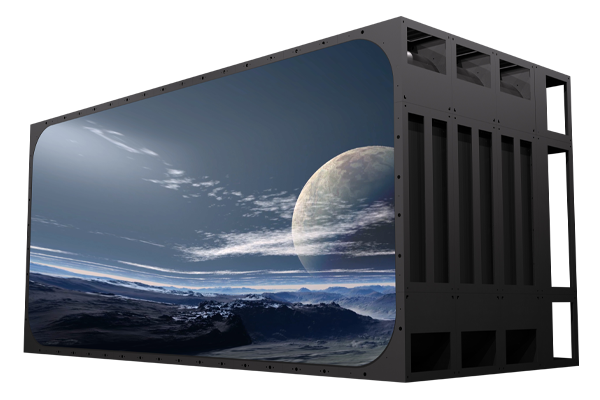
Aluminum Profile CNC Process Cabinet


The cabinet is precision-manufactured using CNC technology, ensuring ultra-high flatness. Its unique structural design delivers excellent heat dissipation performance, guaranteeing stable equipment operation.


Acoustically Transparent LED Screen with CNC-Machined Aluminum Cabinet


High Dynamic Range (HDR) Technology


Supports high dynamic range, high color depth, and wide color gamut, restoring colors as they are and delivering a more realistic visual experience.


High Dynamic Range (HDR) Technology


120Hz 3D Display Technology


120Hz 3D Display Technology


Acoustically Transparent LED Screen Open-Area Ratio Calculation (Current Version)


P2.5 Acoustically Transparent LED Display


Module: M-P2.5-22S(1010)-128X64-V1.0

Hole Diameter: 1.5mm

Single Hole Area: 1.7672 mm²

Total Holes: 3330 pcs

Transparency: 1.7672*3330/320/160≈11.5%


P2.5 Acoustically Transparent LED Display


P3.33 Acoustically Transparent LED Display


Module: M-P3.33-16S(1010)-96X48-V1.2

Hole Diameter: 2.18mm

Single Hole Area: 3.7325 mm²

Total Holes: 1716 pcs

Transparency: 3.7325*1716/320/160≈12.51%


P3.33 Acoustically Transparent LED Display


P3.07 Dome Acoustically Transparent Display


Module: M-P3(1515)-26s50x104-1.0

Hole Diameter: 1.3mm

Single Hole Area: 1.3273 mm²

Total Holes: 4150 pcs

Transparency: 1.3273*4150/318/153.4≈19.45%


P3.07 Dome Acoustically Transparent Display


P3.1 Dome Acoustically Transparent Display


Module:M-P3.1-(1010)26S-90X156-282.42X485.77mm-V1.0 UC1-T1

Hole Diameter: 1.25mm

Single Hole Area: 4.8079 mm²

Total Holes: 5213pcs

Transparency: 4.8079*5213/485.77/282.25≈18.23%


P3.1 Dome Acoustically Transparent Display


P3.91 Dome Acoustically Transparent Display


Module:m-p3.91(1010)-21s31x119-(u20)

Hole Diameter: 2.55mm

Single Hole Area: 5.1071 mm²

Total Holes: 1767pcs

Transparency: 5.1071*1767/54744≈16.5%


P3.91 Dome Acoustically Transparent Display


Technical Specifications of Acoustically Transparent LED Screens


Standard Acoustically Transparent LED Display


Standard Acoustically Transparent LED Display
ModelP2.5P3.33
Pixel pitch2.5mm3.33mm
Pixel Density(Pixles/㎡)16000090099
Module Size320*160mm320*160mm
Display SizeCustomizedCustomized


Customization and dome screen development are supported


Acoustically Transparent Dome LED Screen


Spherical Dome Acoustically Transparent
ModelP2.82P3P4
Pixel pitch2.82mm3mm4mm
Pixel Density(Pixles/㎡)12574811111162500
Module Size500*250mm Within
Display SizeCustomizedØ25mØ17m


Applications of Acoustically Transparent LED Displays


Flight Cinemas


Flight Cinemas


Science Museums


Science Museums


Cinemas


Cinemas


Dome Theaters


Dome Theaters


Planetariums


Planetariums


Conclusion

Meiyad’s acoustically transparent cinema LED solution is transforming the experience of flying theaters and dome theaters. By combining high brightness, ultra-clear resolution, and sound-permeable technology, it overcomes the limitations of traditional screens, delivering a more immersive, dynamic, and interactive visual experience. This innovative solution also offers greater flexibility in theater design, supporting customized content and spatial layouts, making every screening a unique sensory journey.


You May Also Like

Meiyad Continues to Shine on Day 2 of SEAMEX 2026 in Malaysia

22|05|2026

Meiyad Continues to Shine on Day 2 of SEAMEX 2026 in Malaysia

Today marks the second day of SEAMEX 2026 in Malaysia, and Meiyad continues to attract strong attention from visitors, partners, and industry professionals across Southeast Asia.At Booth A033, Meiyad is showcasing a wide range of innovative LED display solutions, including the high-end SK Rental LED Screen, COB LED displays, SMD LED displays, and GOB LED display technologies. These products demonstrate Meiyad’s professional capabilities in stage rental, commercial display, cultural tourism, and immersive audiovisual applications.Throughout the exhibition, Meiyad’s booth has welcomed many customers and industry partners who showed great interest in the outstanding visual performance, seamless display quality, and creative customization solutions of our LED displays. The event also provides an important platform for Meiyad to strengthen cooperation with Southeast Asian clients and further expand our presence in the regional market.As SEAMEX 2026 enters its final day tomorrow, Meiyad warmly welcomes more visitors to Booth A033 to explore our latest LED display technologies and discuss future cooperation opportunities.We sincerely appreciate the support and trust from all customers, partners, and visitors, and we look forward to creating more innovative audiovisual experiences together.Exhibition: SEAMEX 2026Booth: A033Location: Borneo Convention Centre Kuching, Malaysia

LED Display Screen Software Installation and Debugging Tutorial

20|05|2026

LED Display Screen Software Installation and Debugging Tutorial

Software Installation, Login & Screen ConfigurationDownload & InstallationOfficial website download:Visit NovaStar official website(www.novastar-led.cn or https://www.novastar.tech) → Support → Software Download, and download the latest version of NovaLCT (recommended v5.5.0 or above).Installation steps:I. Double-click the installation package.II. Use the default installation path.III. Complete installation.IIII. Disable antivirus software temporarily to avoid accidental blockingDevice ConnectionSynchronous System (Direct Network Cable Connection)Step 1: PC → Sending Card: Connect directly via USB cable; or Connect through the same LAN using network cable. (Default IP range: 192.168.0.xxx / 192.168.1.xxx)Step 2: Sending Card → Receiving Card: Cascade via network cables. Receiving card connects to the LED screen HUB board.Asynchronous System (WiFi Direct Connection)Step 1: Connect PC/mobile phone to the player box WiFi (Default SSID: AP + last 8 digits of SN, Password can be found on the device label); or connect through the same LAN.Step 2: Connect the player box to the HUB board (receiving card) and power on.Software LoginStep 1: Open NovaLCT,Click Login→Advanced Synchronous Login,Default password:666 or admin.Step 2: Successful connection message: "Control System 1, No Display Screen"; If connection fails, check wiring and check power supply.Smart ConfigurationStep 1: After login, enter Screen Configuration → Smart Settings.Step 2: Select Chip model, Decoding method, Module size (e.g. 172x86), click Next stepStep 3: Follow the screen instructions: Bright line direction→Color matching→Pixel-by-pixel calibration, generate configuration file (.scfg).Step 4: Click Send to apply parameters to the receiving card.Manual ConfigurationStep 1: Receiving Card Parameters: Enter Receiving Card → Port Configuration → Set width, height, number of data groups, and scan mode (e.g. 1/32 scan).Step 2: Sending Card Resolution: Enter Sending Card → Output Resolution → Enter actual screen resolution (e.g. 1920×1080) → Enable scaling → Click Send.Step 3: Load Configuration File: Supports local (.scfg/.zip) or cloud configuration files. Allows quick parameter reuse. [__LINK_ICON].Program Creation & Publishing (Asynchronous System)Pingjl Installation & OperationStep 1: Download Pingjl from the official website. Double-click the installation file and follow the Pingjl. After first launch, select "Asynchronous Playback" mode. Click "Start Now".Step 2: Open Pingjl and add devices: (Search LAN/WiFi devices, Default password: admin).Step 3: Create a new program: Program Management → New Program. Set resolution matching the screen.Step 4: Add media: Support Add media, Videos (MP4/AVI), Text, Clock, Weather forecast.Step 5: Edit attributes: Playback duration, Transition effects, Loop mode, Multi-layer overlay supported.Program PublishingStep 1: Select the program→Click Publish→Select target terminal→Confirm sending.Step 2: After successful publishing, the player box automatically loads and plays the program. If publishing fails, check network connection→Check device storage.Device Management, Maintenance & Firmware UpgradeFirmware UpgradeEnter Program Upgrade→Connect to the Internet, Select cloud upgrade, Choose corresponding sending card / receiving card firmware, Wait for completion, Do not power off during upgrade.Offline Upgrade:Import local firmware package (.bin), batch upgrade devices:Step 1: Login through "Login → Advanced Synchronous Login",enter password admin or 666. (For asynchronous products (JT/TB series), select Media Player Login)Step 2: Type "admin"or "666888" on the main interface.Step 3: Select communication port. If you need to reconnect the sending card, click "Reconnect".Step 4: Select the range to view, click "Refresh" to view the current software version of the hardware.Refresh All: View all sending/receiving card versions.Specified Refresh: View the software versions of the specified sending and receiving cards.PS: Simply click "Refresh All" on the screen to view the receriving card model and firmware version.Identifying Driver & Decoder Chips:Please refer to the information on the back of the module or on the packaging (you may also contact the relevant project manager for confirmation)Check IC markings on the back of the moduleObtain information according to the correct configuration file provided by the manufacturer:Step 1: In the "Screen Configuration" dialog box on the main LCT interface, select the "Receiving Card" tab.Step 2: Load the correct configuration file provided by the screen manufacturer from the local computer:a. Click "Load from Local";b. Select the configuration file and click "Open";c. After the file is successfully loaded, click "OK".Step 3: Click "View Cabinet" to check the information in the pop-up dialog box.Obtain the Corresponding Correct Firmware Program:You can directly access the public resources through the following links:Novastar Database http://gts.novastar.tech:6150/sharing/oLGDYny5ENovastar Overseas Database http://gts.novastar.tech:6150/sharing/CZRitU08hStep 1: Directly access the Nova database mentioned above.Step 2: From the homepage, follow the path:"Firmware Program > Receiving Card”to enter the receiving card model classification page.Step 3: According to the Nova receiving card model confirmed above, enter the corresponding receiving card page. The following examples use DH-LCE7516 / FS-LCE7516 / MRV416.Step 4: According to the confirmed driver IC and decoder IC used on the module, search for the corresponding firmware in the order of 1, 2, 3, and 5.(Option 4 is firmware for the 99-series chips, and 99-series chips can be searched directly.)OverviewUsing the example above, each folder contains the corresponding firmware and descriptions of the supported chips. You can check the descriptions to identify the driver IC and decoder IC used on your module, and then determine which firmware should be used.Based on the confirmed Nova receiving card model and the driver/decoder ICs used on the LED module, you can find the correct corresponding firmware.Screen MonitoringMonitoring → Device Status:Check temperature, voltage, network cable connection, signal source, and abnormal alarm notifications.Preset Screen: Tools → Preset Screen SettingsSet the display image when the signal is lost or disconnected (such as black screen or fixed logo).TroubleshootingUnable to connect to the deviceCheck USB/network cable, power supply, and IP segment; disable the firewall.Screen garbled/flickeringVerify receiving card parameters, network cable quality, and HUB board (receiving card) wiring; resend the configuration.Program playback abnormalCheck media format and resolution compatibility; restart the player box or republish the program.

Send Your Inquiry Today

Factory Direct LED Screen - Fast Quote, Best Price!

Please enter your company name
Please accept the data protection information

I have read and understood the  data protection   information.